
Transfer calls to the right person or department
Replace rigid IVRs with simple rules that route callers to the right number, at the right time.
-
Route important calls to a human
Pass high-priority or sensitive calls to a real person.
-
Replace old-school IVR menus
Instead of “Press 1 for sales,” let callers explain what they need.
-
Control availability
Only transfer calls during business hours or when someone is available.
How it works
How to set up call transfers in Upfirst
The days of "Press 1 for support" are over. Upfirst can talk to callers, answer questions, and transfer them when needed.
-
Step 01
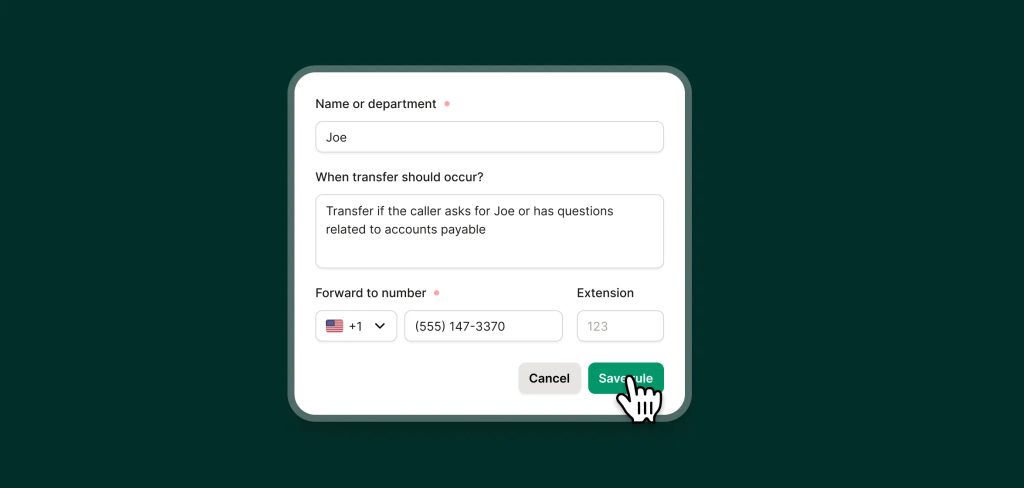
Set your call transfer rules
Add your teammates' or departments' numbers and tell your receptionist when it should transfer calls to each one.
-
Step 02
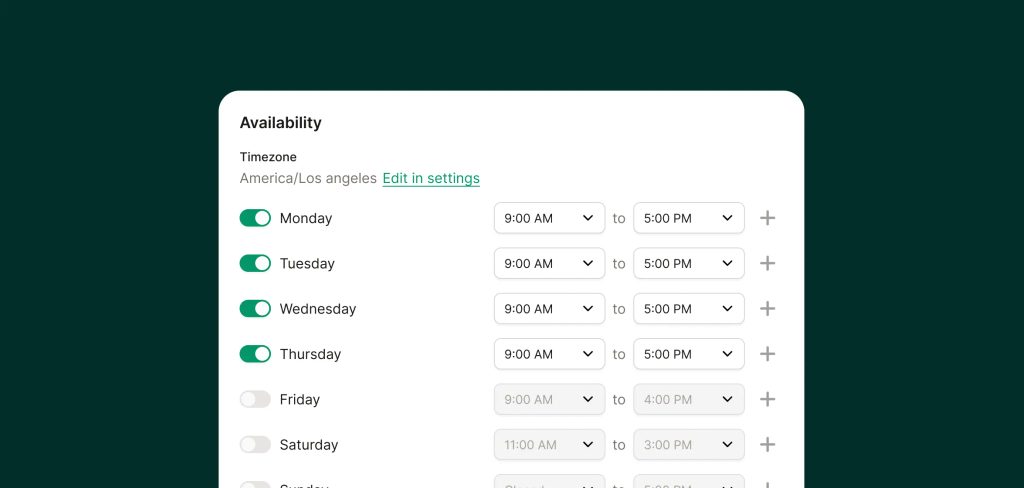
Set your schedule
Choose when transfers are allowed—such as business hours only—so calls never get transferred unavailable team member.
-
Step 03
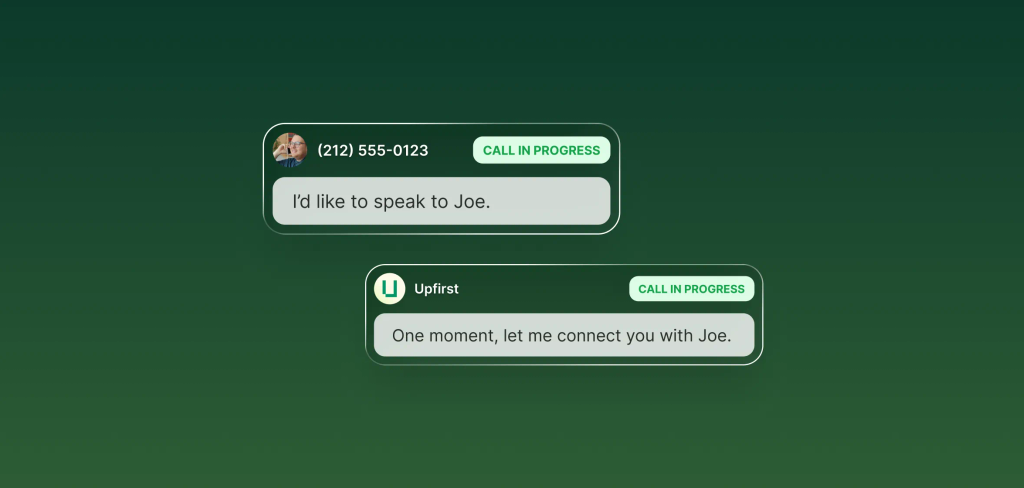
Let your receptionist talk to calls and route them
Your receptionist will handle calls itself—or politely transfer the calls if one of your rules is met.
FAQs about our call transfer feature
Have a question that isn't answered here? Get in touch with our team.
-
Yes. You can add rules for different people, departments, or call scenarios so that each call gets routed appropriately.
-
You have a few options. You can set a fallback so that the receptionist tries to then transfer to somebody else. You can have the receptionist take a message instead. Or, you can send the caller to your voicemail.
-
Yes, your Upfirst receptionist can dial extensions or navigate phone trees to succesfully transfer calls.
-
You can decide. When you create a call transfer rule, you can specify if there is a specific message you want the receptionist to say before handing off the call.
-
Yes, Upfirst offers warm transfers. With a warm transfer, your receptionist will give you some information about the person who is calling, such as their name and what they need. Then you can press one or stay on the line to accept the call. If you choose not to take the call, then the receptionist will let the caller know you're busy and take a message on your behalf.