
Let callers book appointments during the call
Connect your calendar and let Upfirst suggest available times and book appointments directly.
-
Book appointments
Upfirst checks your calendar and books appointments during the call.
-
Set different appointments
Set appointment types with custom length, availability, and rules.
-
Keep your calendar accurate
Add appointments directly to your calendar so everything stays in sync.
How it works
How scheduling works with your calendar
Upfirst handles scheduling automatically once your calendar is connected.
-
Step 01
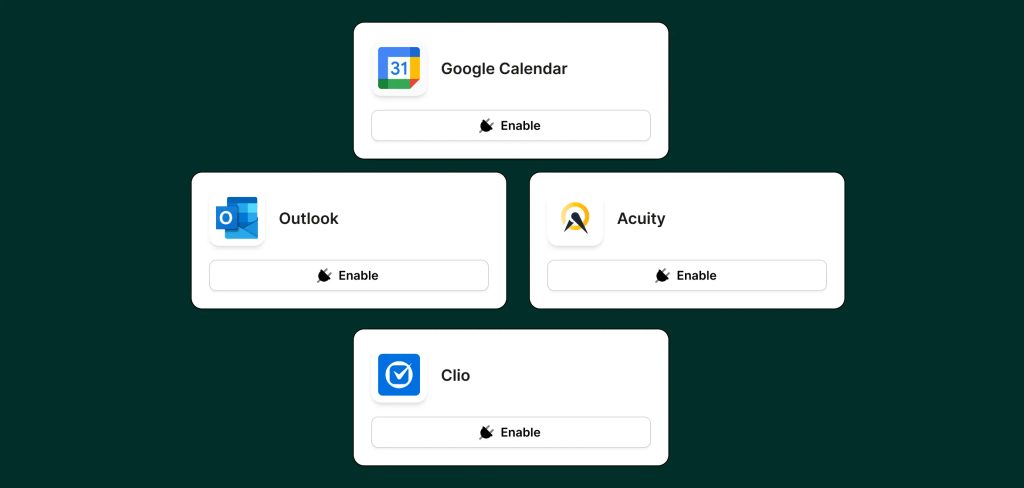
Connect your calendar
Connect Google Calendar, Outlook, Acuity Scheduling, Calendly, and Clio.
-
Step 02
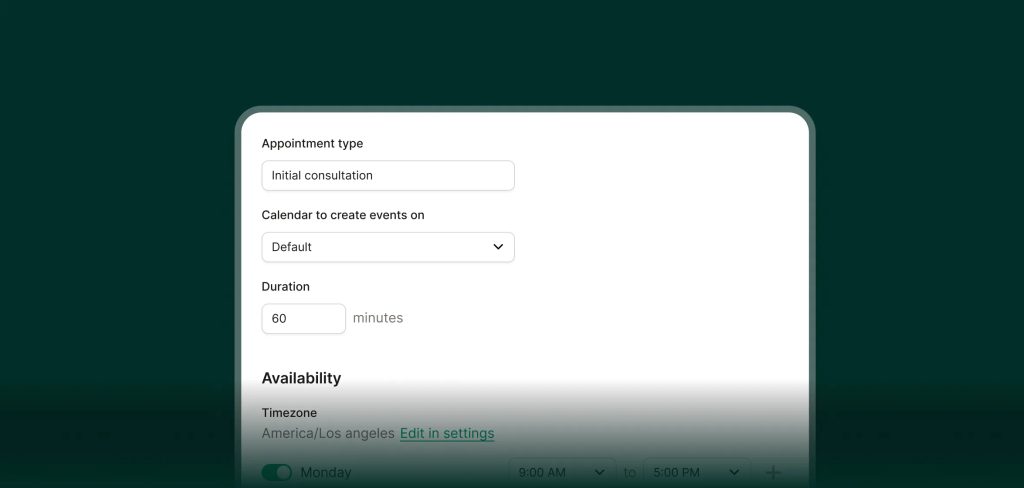
Set your availability
Choose your working hours, appointment length, and buffers before and after appointments.
-
Step 03
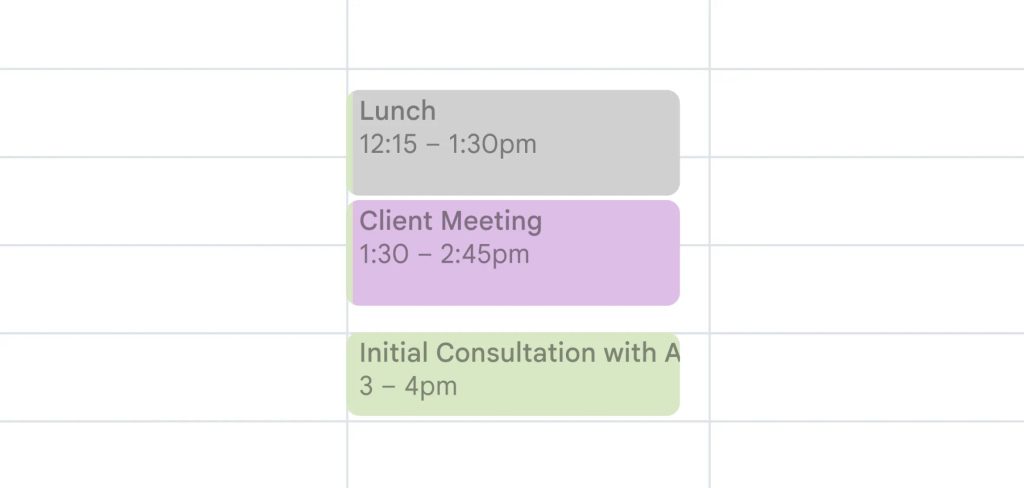
Book directly on your calendar
Upfirst suggests available times, confirms with the caller, and books the appointment automatically.
FAQs about our scheduling feature
Have a question that isn't answered here? Get in touch with our team.
-
Upfirst works with Google Calendar, Outlook, Acuity Scheduling, Calendly, and Clio.
-
Yes. You can connect multiple calendars and manage availability across them.
-
Yes. You can set appointment length and add buffers before and after each appointment.
-
Yes. All collected information is added to the calendar event so you have context before the appointment.